🪟
Native Windows & Tabs
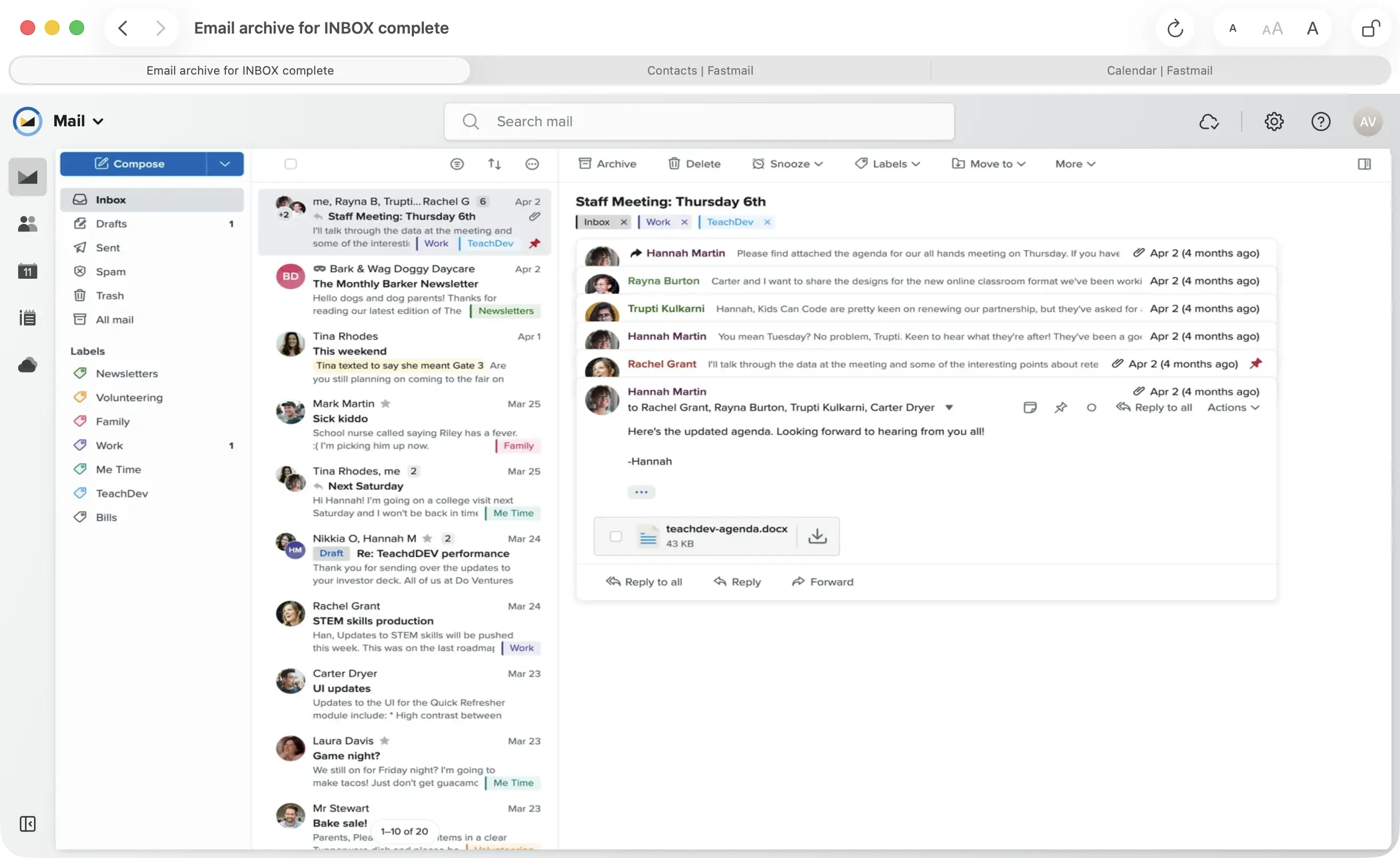
Multiple macOS windows and tabs, saved automatically and restored exactly as you left them, also after restarting your Mac. Use ⌘+number to jump to a specific tab, and ⌘[ / ⌘] to go back and forward.
👥
Multiple Fastmail Accounts
New in 3.0: log in to more than one Fastmail account with Fastmail's own account menu (your avatar, top right). One Dock badge for all accounts, notifications that name the account, unread lists grouped per account, and a Focus filter to let only your work account notify while you're working.
🖱️
Smart Click Modifiers
⌘+click opens a new tab, ⇧⌘+click focuses it, ⌥⌘+click opens a new window, ⇧⌥⌘+click opens and focuses a new window. While writing an email, ⌘+click or ⌥+click a link to open it in your default web browser.
🔔
Real-Time Inbox Count
Your dock icon and menu bar always show your real inbox count, updated in real time via Fastmail's JMAP push connection. No polling delay. No manual refresh. The menu bar also lists your newest unread emails (click one to open it, or mark them all as read), and right-clicking the Dock icon shows your unread emails plus New Message and Open Inbox.
💬
Native Notifications
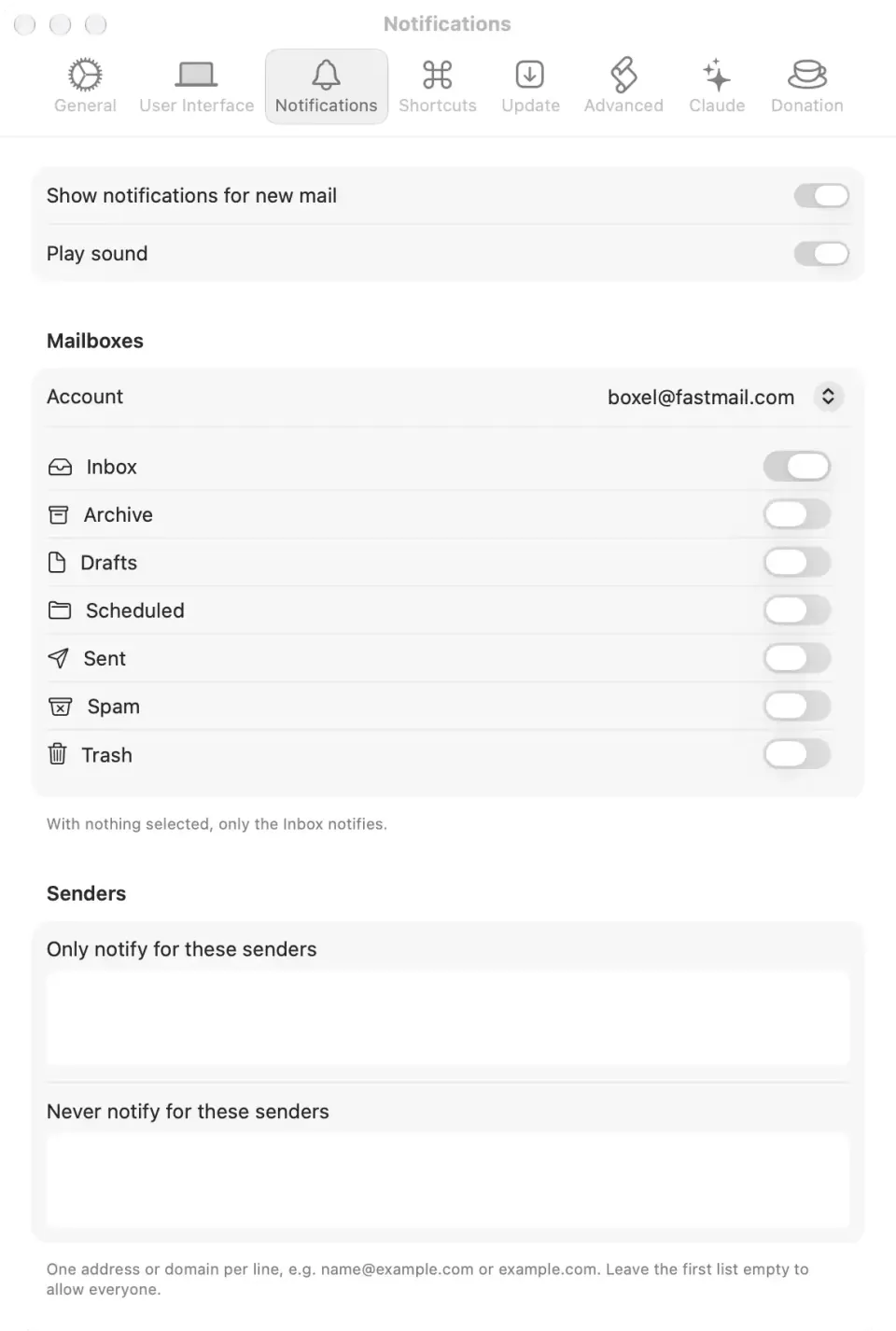
New email notifications arrive natively through macOS. Reply, Mark as Read, Archive, Flag or Delete right from the notification, no open window required. A notification disappears by itself once the email is read or moved, even on another device.
✉️
Default Email Client
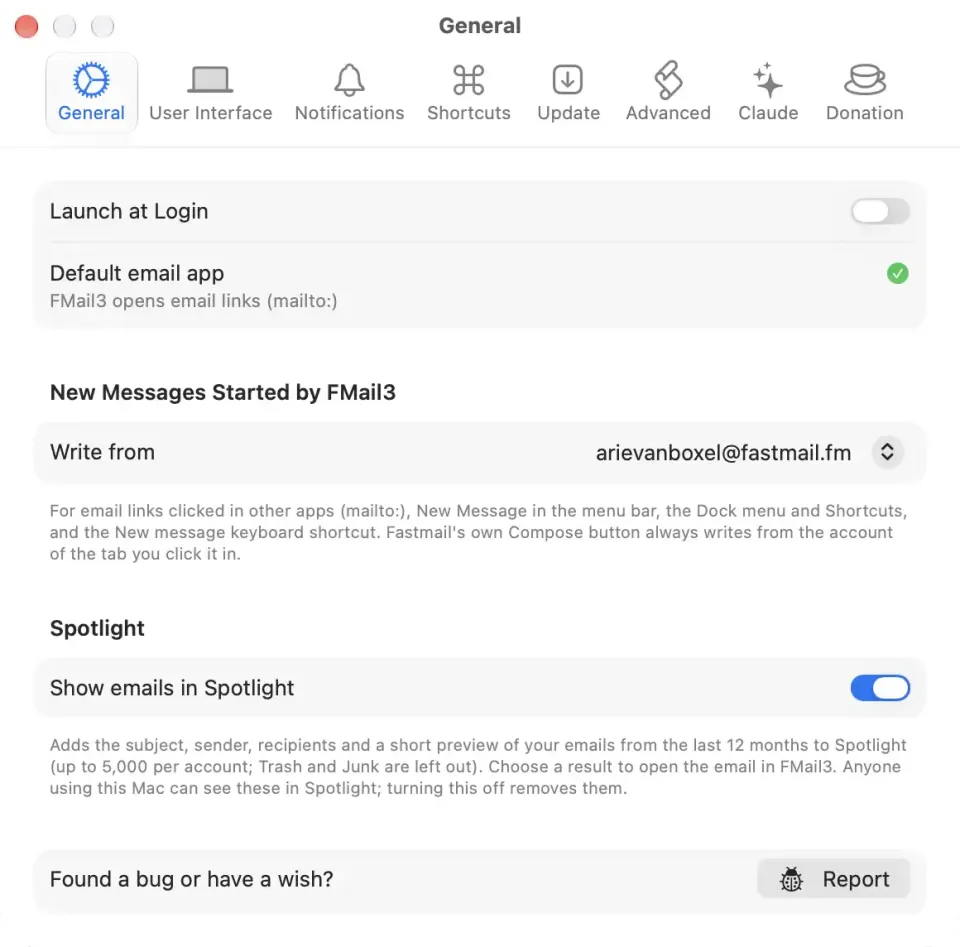
One click in Settings ▸ General registers FMail3 as your default email client, no manual steps in System Settings needed. Every mailto: link on the web then opens a pre-filled Fastmail compose window.
✍️
Compose-in-Window Mode
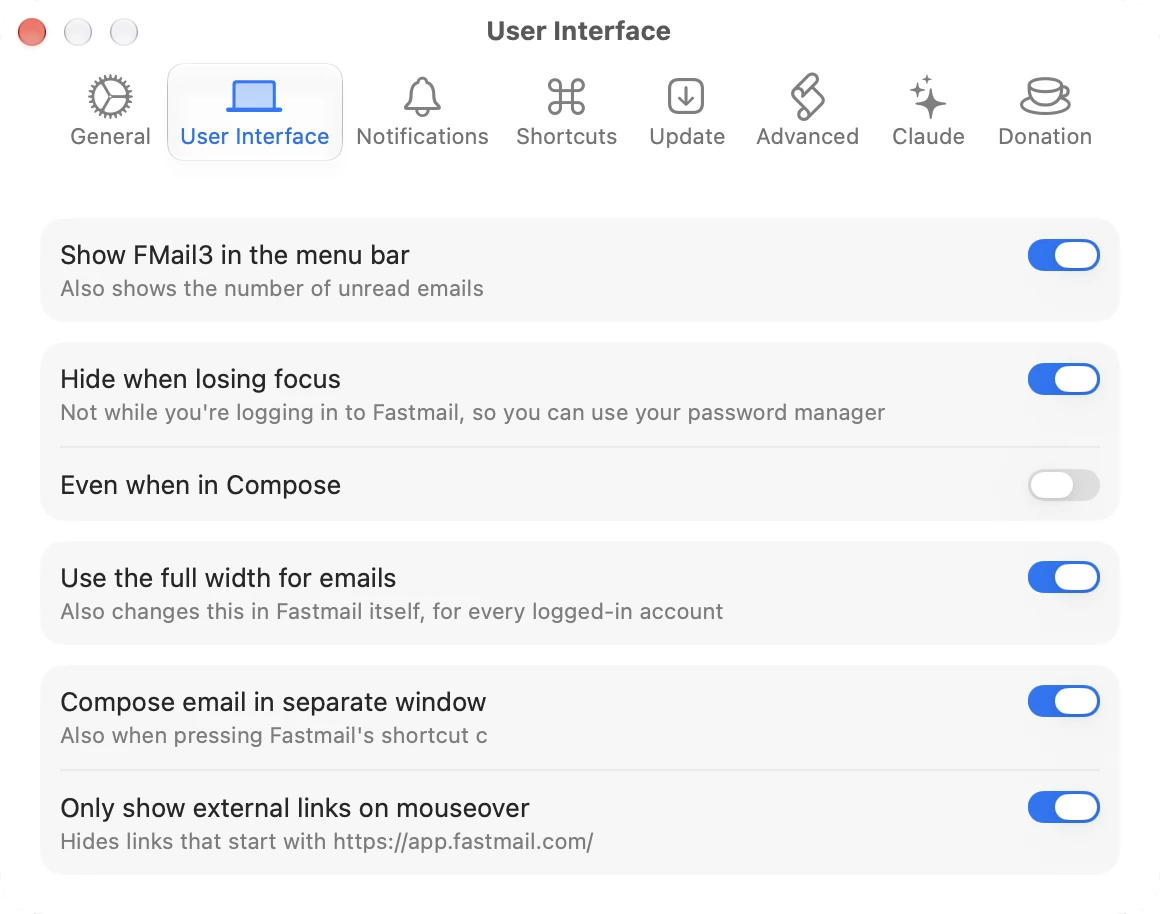
Prefer to write email without your inbox staring back at you? Enable compose-in-window mode for a clean, focused drafting experience. New Message from the Dock, the menu bar or Shortcuts follows this setting too; mailto: links from other apps keep opening in the main window.
↩️
Reply With Just Your Selection
Select any text in an email before clicking Reply or Reply All, and only that selection gets quoted, not the whole message. No selection means the normal full quote, exactly as before.
🎭
Masked Email Creation
Easily create a new masked email address directly from within FMail3.
🔗
Deep Links, Hookmark & Linker
Copy a message:// deep link in both Fastmail and Apple Mail RFC-5322 formats, or open any Fastmail link straight back into FMail3, from the Tools menu or the Terminal.
Or simply right-click an email to copy its Apple Mail or Hookmark link, and right-click a Fastmail link to open it in a new FMail3 tab or window.
Full Hookmark and Linker support for personal linking workflows, also with Hide when losing focus turned on.
⚙️
Shortcuts & Siri
Get Unread Mail Count, Search Mail, Open Mailbox, Open Email, New Message and Mark Emails are available as actions in the Shortcuts app, in Spotlight and with Siri. Try “How many unread emails in FMail3”.
🔍
Find Emails With Spotlight
Turn on Show emails in Spotlight in Settings ▸ General, and your emails from the last 12 months show up in Spotlight (⌘Space) by subject, sender or recipient, for every Fastmail account you're logged in to. Choose one to open it right in FMail3.
🤖
Claude (MCP) Integration
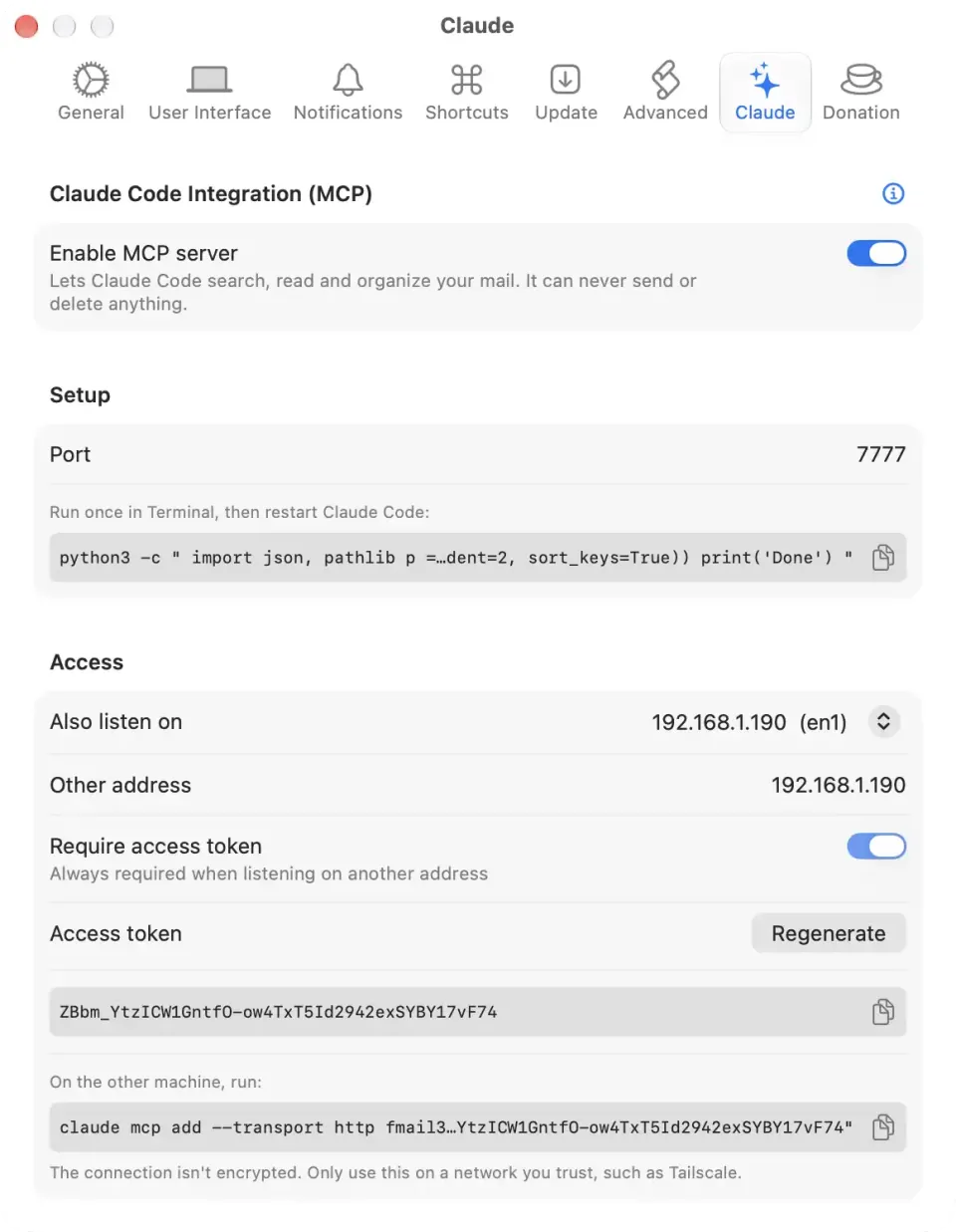
Let Claude work with your mail: search by text, sender, recipient, mailbox, unread, flagged or attachments, read emails, open them in FMail3, mark them read or flagged, and move them to another mailbox. Nothing can be deleted or sent.
Use it from Claude Code on this Mac, or (protected by an access token) from another computer on your network or Tailscale.
📄
Export to PDF
Save any email directly as a PDF from the File menu (⇧⌘P): clean output with Fastmail UI chrome hidden.
📎
Attached Files Browser
Browse every attachment across your whole mailbox from one native window (Tools ▸ Show Attached Files, ⇧⌘A), with live thumbnail previews for images and PDFs.
Filter by type (PDFs, images, documents, and more), search by filename or sender, and download, print, or QuickLook-preview any file directly from its row. Jump straight to the source email with Show Email. Spam and inline logos/signature graphics are automatically left out.
☁️
Large Attachments via Fastmail Files
Attach a file that's too big to send, and FMail3 automatically uploads it to Fastmail Files, turns on its share link, and adds it to your email, right in the draft you're already writing. A chip shows upload progress and turns into a clickable link once it's done. No manual upload, no new compose window, nothing to copy and paste.
🖍️
Text Highlights
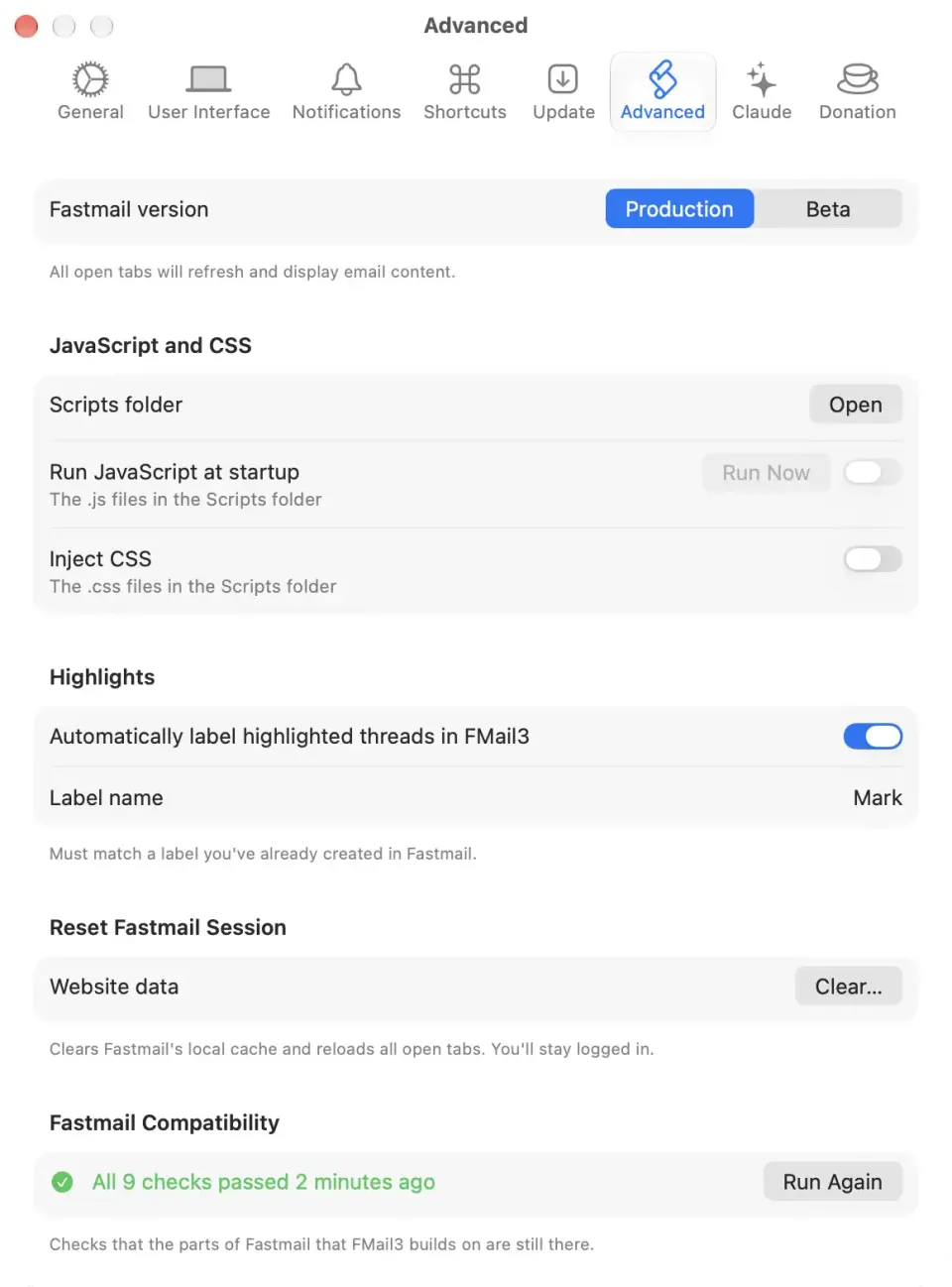
Select any text in an email and click Highlight (or right-click ▸ Highlight Selection) to remember it. It reappears automatically next time you open that email, even after quitting and relaunching. Threads with a highlight get a small marker in the mailbox list, and you can optionally sync a Fastmail tag automatically to any thread with a highlight (Settings ▸ Advanced).
📤
Export & Import Highlights
Save every highlight you've made to a standalone HTML file (Highlights ▸ Export Highlights…, ⇧⌘E), newest first, with each quote linking straight back to its email in Fastmail, so your highlights aren't locked into FMail3.
To just browse them, Highlights ▸ Show Highlights (⇧⌘H) opens the same list in a window that stays up to date as you add or remove highlights.
Bring that same file back in anytime with Highlights ▸ Import Highlights… (⇧⌘I), handy for backups or moving to a new Mac.
Want a clean slate instead? Highlights ▸ Remove All Highlights clears everything in one click.
🎨
Toolbar & Appearance
Customize or hide the toolbar with standard shortcuts. With the toolbar hidden, Fastmail fills the whole window up to its top edge, just like Fastmail's own desktop app. Inject your own JavaScript or CSS to tailor the Fastmail experience.
👁️
Auto-Hide & Focus
Lock a toolbar button to hide FMail3 automatically when it loses focus, or set a custom keyboard shortcut to toggle visibility.
🔒
Secure & Private
Sandboxed and notarized by Apple. Not running in your browser means better protection against web tracking. Mouse-over reveals hidden link destinations before you click. No user data collected, ever.
⚡
Lightweight & Modern
Just over 10 MB, built with SwiftUI and Swift 6, fully adapted for macOS Tahoe, with Settings in the style of System Settings, and actively developed since 2019.